
FAQs
Find answers to common questions about our platform and services.
To access your existing Formed account:
1. Go to Formed.org.
2. Select Sign In in the upper-right corner. On a mobile device, open the menu at the top of the page and select Sign In.
3. Enter your email address and select Next.
4. We’ll send a verification code to your email. Enter the code on the sign-in page. If you previously created a password, you may be asked to enter your password instead.
Once you enter your verification code or password, you’ll be signed in and ready to explore Formed.
Parishioners can create a free Formed account through your parish in just a few steps:
1. Go to Formed.org/signup using a web browser such as Chrome, Firefox, or Safari.
2. Select Find Your Parish Subscription.
3. Select Continue to Sign Up/Login.
4. Enter your email address and select Next.
5. If your email is already associated with an account, we’ll send you a verification code. If you previously created a password, you may be asked to enter that instead.
6. If you’re creating a new account, enter your name and phone number, agree to the Terms of Use, and select Sign Up.
7. Enter your parish ZIP code, choose your parish from the list, and select Submit.
You’re in! You can begin exploring Formed right away. You can also add a password later through your Account Settings or continue signing in with a verification code sent to your email.
Directions to Register, in Spanish are here.
The Formed Resource Center is designed for parish leaders and anyone helping support the life and mission of a parish, including pastors, Directors of Religious Education, youth ministers, catechists, ministry leaders, and volunteers.
If you’re looking for practical ways to bring Formed into your ministry, the Resource Center gives you Pathways, promotional tools, training, and support to help you get started.
Pathways are ready-to-use formation experiences designed to make it easier to bring Formed into the life of your parish.
Each Pathway brings together carefully selected Formed content with the practical resources you need to promote, prepare, and lead a formation experience. This will include a Playbook, discussion questions, promotional materials, participant resources, and suggested schedules.
Pathways are also flexible. A Pathway might become a one-day retreat, a weekly sacramental preparation program, a small group, or something adapted specifically for your community.
Start by choosing the Pathway that best fits what you’re hoping to do. Each one includes guidance to help you understand the audience, content, resources, and different ways it can be used.
From there, make it your own. Our audience and category recommendations are there to give you a starting point, not to limit you. You know your community best, and you’re welcome to adapt the Pathway to serve the people in front of you.
Not sure where to begin? Watch the welcome video on the Pathway page or connect with our Implementation Team for help.
Each Pathway includes a suggested audience based on its Formed content, discussion materials, and intended level of formation.
These recommendations are designed to help you find a good starting point, but they aren’t strict requirements. You know your community best, so if you believe a Pathway would serve another group in yourparish, feel free to adapt it accordingly.
Visit the Upcoming Workshops section above to see what’scoming up. Select the workshop you’d like to attend and register to receive thesession details.
There’s no need to register! Office Hours are a drop-in opportunity to speak directly with one of our Implementation Specialists. Simply choose the scheduled time that works for you and use the Zoom link to join.
Come with a question, an idea, or anything you’d like help working through.
Absolutely. We want the Resource Center to reflect the real needs of parish ministry. If there’s a Pathway, resource, or workshop topic that would better support your parish, let our Implmentation Team know.
Reach out to us at parishcare@formed.org and we will be happy to help.
You can edit your billing information any time on the billing's settings page. Keep in mind, if you subscribed on another platform, such as iOS, Android, or Roku, you would need to update your payment information through the relevant app store.
Please note that Visa Gift Cards and other kinds of pre-paid gift cards are not supported.
Image needs to be transferred over: https://help.formed.org/support/solutions/articles/9000213943-how-do-i-update-my-credit-or-debit-card-
Parishes need to contact parishcare@formed.org..
Individual subscriptions can follow the steps below:
The receipt/invoice can be found at the bottom of your confirmation email that we sent when you first purchased/subscribed. You can check that, or contact us if you need it re-sent.
We currently pre-authorize the amount of $1 with every trial sign up as a way to help us prevent fraudulent activity. This amount will be credited back to your account within a few days as it is only meant to authenticate your credit card at registration. Please note that this hold will always be in USD, so your bank may convert the $1 hold to your local currency.
If you signed up on the web and would like a refund:
Contact us and we will review your request. This is the only subscription type our support team can refund.
If you signed up on the iOS app or Apple TV, and would like a refund:
Request a refund through Apple
If you signed up on the Android app or Android TV, and would like a refund:
Request a refund through the Play Store
If you signed up on the Roku app, and would like a refund:
Request a refund through Roku
If you signed up on the Amazon Fire TV app, and would like a refund:
Request a refund through Amazon
Short, FREE daily videos by Dr. Tim Gray that reflect on the Catholic Mass readings. Get them straight to your inbox each day for a deeper understanding of the scriptures and a boost to your faith journey!
Sign up at daily.formed.org
To be made available on the internet, some videos require certain territorial restrictions. When this requirement exists on a video you're trying to watch, you will see a message reading:
"Sorry, video is not currently available in your country"
If you're seeing this message, it may be because you're accessing the internet through a Virtual Private Network (VPN), or a proxy. These methods can hide your location and will prevent playback from a protected video. If disabling these methods does not resolve the issue, then it's likely that you're trying to access the content from a region that is currently being blocked.
Yes, visit watch.formed.org. On the top bar, click “Español” and select from movies, parish programs, children’s content, kid’s shows, and more!
All FORMED Daily Reflections are CC'd, in addition to some movies.
Nearly all new content is automatically CC'd
We are in the process of updating older content to include CC.
Yes! These books are then permanently in your app.
We want to offer as much content as possible to the parish at large. All parish-based programs (Symbolon, Beloved, etc.) may be shown to the entire parish anytime.
Movies on Formed are intended to be enjoyed by individuals and families. Families may gather at someone’s home to watch a movie on Formed as long as the families are not selling tickets at their door or using it commercially.
Parishes may not use Formed for a parish-wide movie night and/or use the movies commercially. If a parish wants to host a movie night, Ignatius Press does offer this outside of the parish Formed subscription. Click here https://www.ignatius.com/promotions/movienights/ to learn more about “Ignatius Night at the Movies.”
Topic sharing has been removed. In its place we now have trailers that are easy to watch and share, no subscription necessary!
Yes! Below each video is a share button that allows you to share by Facebook, X, or email. You can use the flyers and other material on the Resource Center site to share via Facebook or Flocknote.
Yes! Now you can create a “My List” of all the great content you’re interested in and go back to it when you’re ready to watch. Once an item is added to your My List, it appears at the top of your main browse page. When viewing on a browser, look for the ADD TO WATCHLIST beneath the video. When viewing on a phone app, tap the three vertical dots on the right, beneath the video, then click MY LIST. This saves the video to the “library” on the app.
Yes! No internet? No problem! We’re excited to now offer offline playback to all Formed users at no additional charge. To utilize this feature please follow these steps:
- After first signing up with your parish or individual account on a browser, download the Formed app on your phone by going to the App Store or Google Play Store and searching “Formed.” Then, tap GET or INSTALL.
- Open the App and tap on the video you’d like to download to your phone.
- Tap the three vertical dots on the right, beneath the video, then click DOWNLOAD.Tap on LIBRARY>DOWNLOADS to retrieve the video.
Our improved search function will help you discover the content you are lookingfor, making it easier to find our programs, movies, e-books, and audios. Just click the magnifying glass at the top of the page and type in the content you’re looking for.
Yes! Leaders.formed.org offers a Resource Center full of promotional materials and tools aimed towards helping leaders succeed in mission. Ministry resources include learning tracks, recommended roadmaps, success stories, webinars, and supplementary materials, such as playbooks.
Formed is compatible on the Formed app on Apple and Android as well as some Smart TVs.
Compatible smart TVs:
o Roku
o Amazon Fire
o Apple TV
o Google TV(any TV that uses Google TV OS, of which there are many different brands and models to list)
Using the Formed Roku channel, you can view the content easily on your TV.
3rd generation Roku devices and higher are supported for up to 1080p playback. Roku 4 and higher support 4K playback. Older Roku devices are not supported.
Follow these steps to log in:
- Add the Formed Roku channel to your Roku.
- Open the Formed Roku channel on your Roku and click Log In.
- Enter your email and password for your Formed Roku device. Please note this is different than your Formed web password.
Important:
· This password will serve only for the Formed Roku app.
· It is not necessarily the same as your password for app.formed.org if you have already set one, though you can choose to make them the same.
If you have forgotten your password or need to set up a Formed Roku channel password, please select "Forgot password". Please check your spam/junk folder if you do not see the reset email in your inbox. If youdo not find an email from Roku to reset your password, please contact Roku support for assistance.
If you encounter any further technical difficulties, please reach out to our platform host, Vimeo, as they handle all technical difficulties: https://watch.formed.org/contact/support
Here are the steps to install a tvOS app on your Apple TV if you are already a subscriber:
- Turn on your Apple TV (4th Generation) and open the App Store. Also, be sure that you are running tvOS 11 or higher.
- Search for Formed.
- Install it on your Apple TV.
- Once installed, open the app and click the Sign In button.
- The app will provide you with an activation code.
- On a computer or mobile device, visit the activate page, sign in (if you are not), and enter that code.
- The app will then refresh, and you will be able to watch Formed.
Note: Our AppleTV app should not be confused with the Apple TV+ app; this is an entirely separate app on tvOS for Apple's original content.
Adding titles to "My List"
The "My List" function is located under "Library," which is at the top of the app. As a subscriber, you can add titles to the list by clicking and holding on the title until a new window pops up. That window should allow you to add the title to "My List."
There are a few different methods in how you can watch Formed on the TV, though it may depend on what kind of TV it is for whether it can support the needed features.
See the FAQ section on the Resource Center for more information or contact our Parish Care team.
You can Chromecast videos from Formed iOS app to your Chromecast device on the same local network.
Note: At this time, we do not support Chromecast devices that some TVs have built-in. While it may work, our player is not developed to support this and we cannot troubleshoot any issues that may arise. Only external Chromecast devices are officially supported. While there is no comprehensive list of supported and unsupported models, if you provide the model number to our Support team, we are happy to check for you.
Also, unfortunately, it is not possible to Chromecast from a mobile web browser on an iOS device. Casting (ex. Chromecast or AirPlay) requires an internet connection to verify the user’s location. However, mirroring does not. So, videos that can be downloaded in or phone app, can then be mirrored to the larger screen.
1. Launch the iOS app and open a video. Tap the screen so that the player controls appear. If you see the Chromecast icon in the lower right of the screen, you will be able to Chromecast the video.

2. Tap the Chromecast icon. You may see a prompt requesting access for the app to your local network. You will need to select OK; if you tap the X, you will not be able to Chromecast and this prompt will not appear again unless you reinstall or update the app.
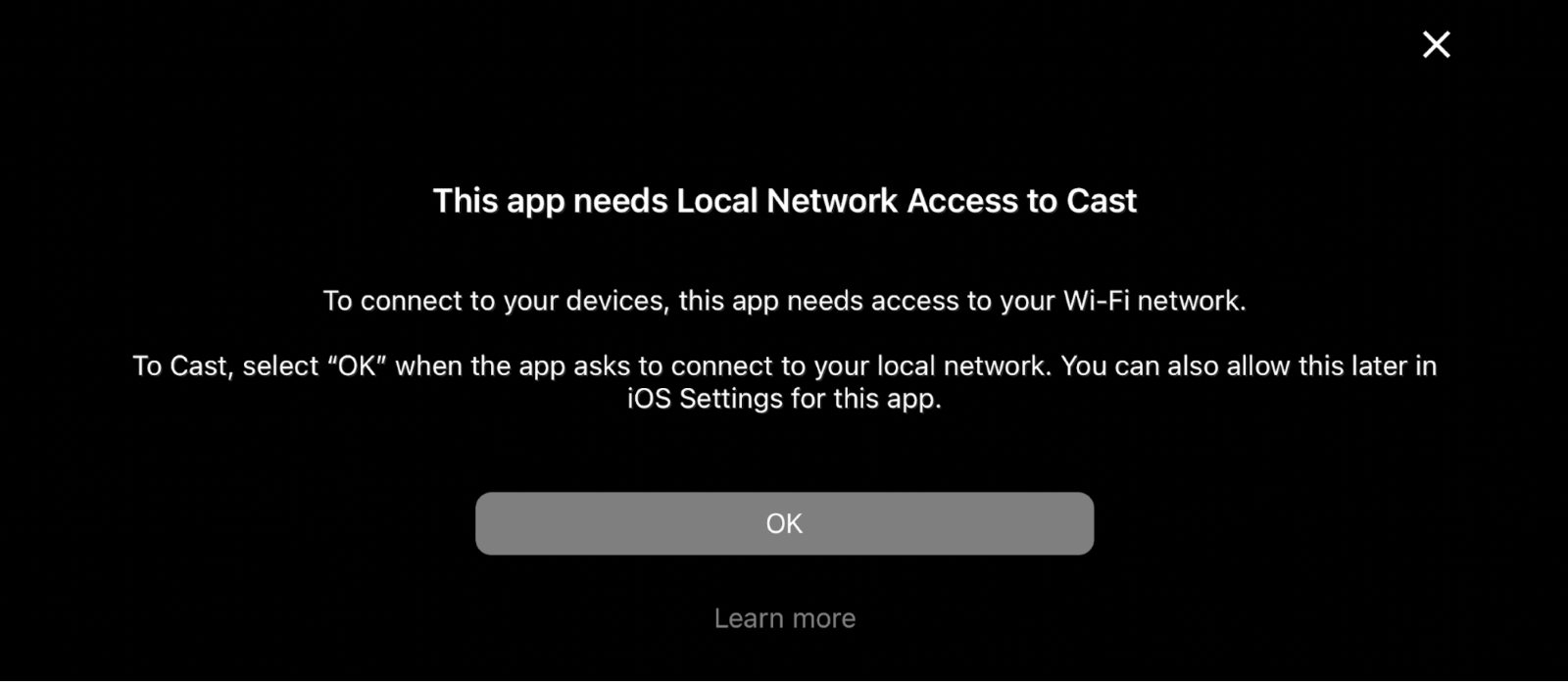
3. You can always adjust this setting later by going to your device's Settings, scroll down and select FORMED, and toggle the Local Network setting.
4. Once you are successfully Chromecasting, the video will appear on the screen. On your iOS device, you will see ‘Chromecast’ where the video normally appears.
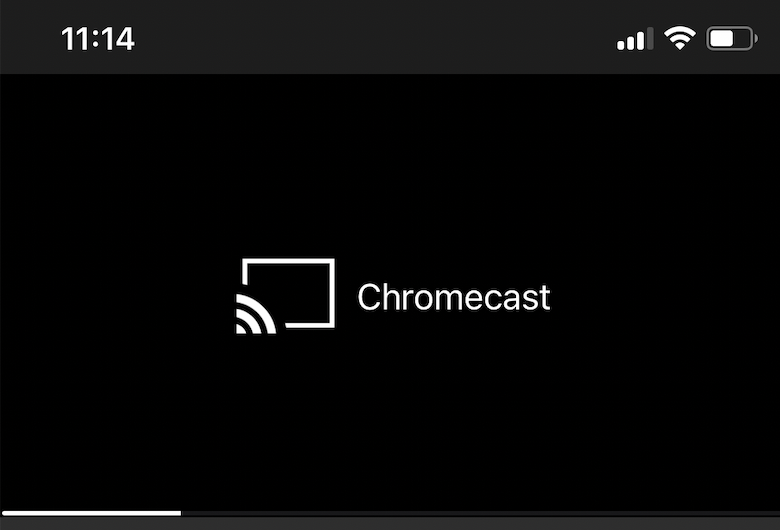
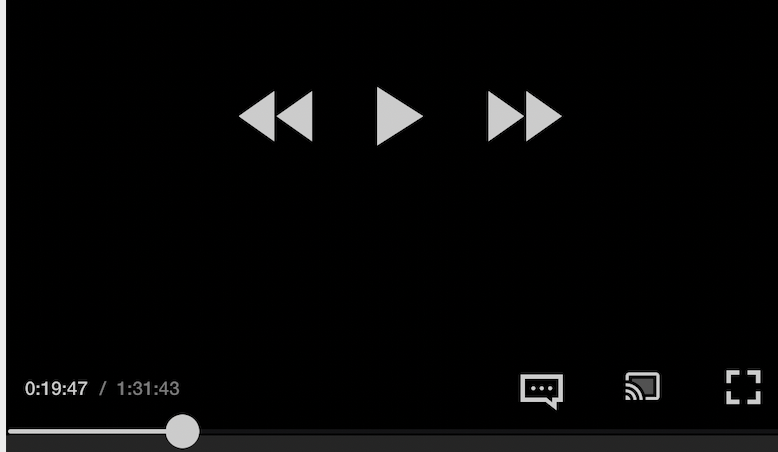
5. To pause, fast forward, or rewind, tap the phone screen and use the player controls within the app.
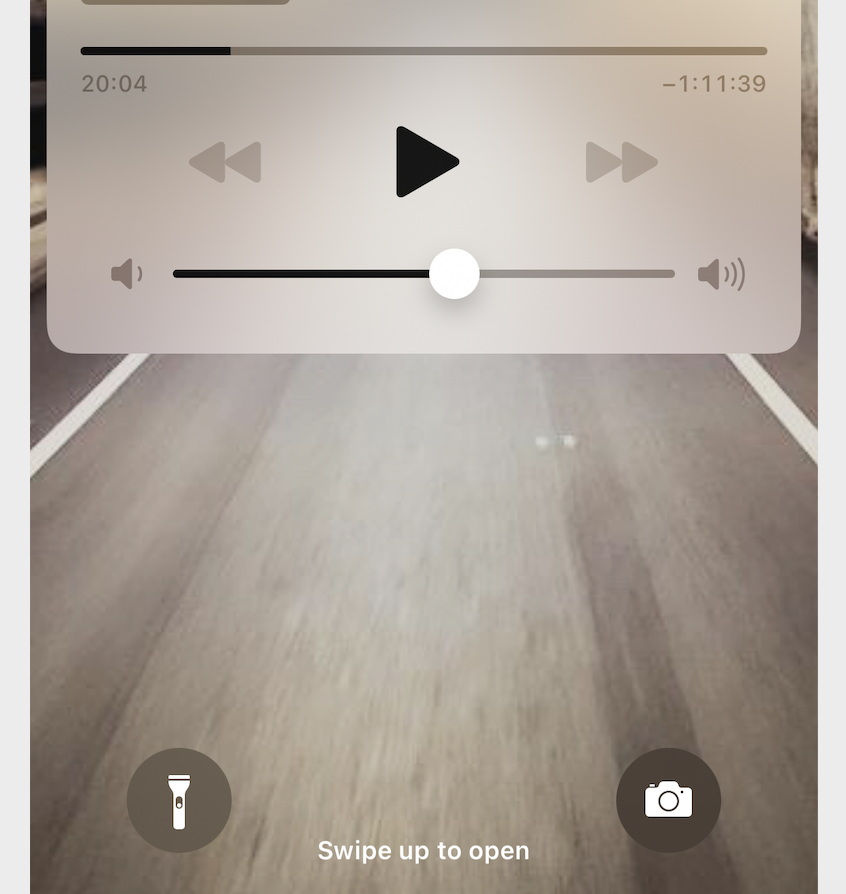
6. Note: When Chromecasting, you will not be able to use the player controls that appear on your iOS device's lock screen. You would need to unlock your phone and use the controls within the app.
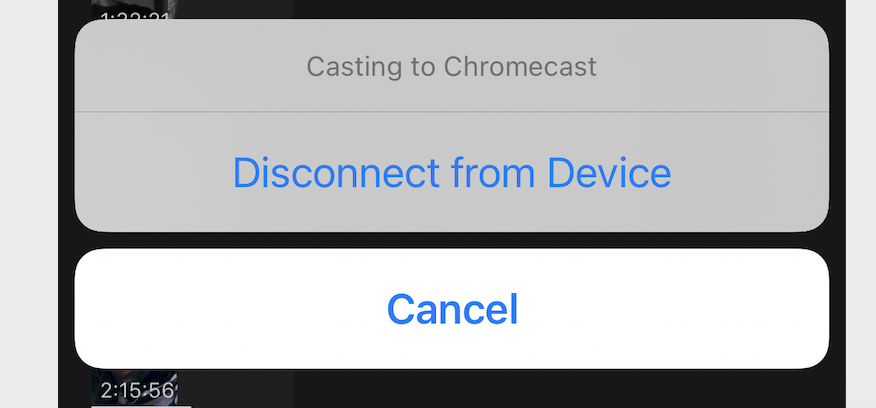
7. To disconnect from Chromecast, tap the Chromecast icon within the player, then tap Disconnect from Device in the menu that appears.
Control captions when casting
Captions, if available, can be controlled directly within the player in the app when you are casting. They cannot be controlled on the TV screen.
Go to to the website: app.formed.org.
2. Click on "Sign In"in the upper right corner (or, if you are on a mobile device, click on the 3lines at the top of the page, then click "Sign In").
3. Enter your email address, then click "Next."
4. You will then be emailed a verification code, which you will enter on the sign-in page (or, if you have created a password, you will be asked to enter your password here).
5. You should then be signed in to Formed after entering this code (or after entering your password).
Answer with images and videos here: https://help.formed.org/support/solutions/articles/9000213940-how-do-i-turn-on-subtitles-
Turning on subtitles varies slightly depending on how you are watching videos. Note that subtitles may not be available on all videos so if you don't see the options described below, it's because there are no subtitles available for that video. Conversely, if you see subtitles and do not have the option to turn them off, that's because they are part of the video itself and cannot be disabled.
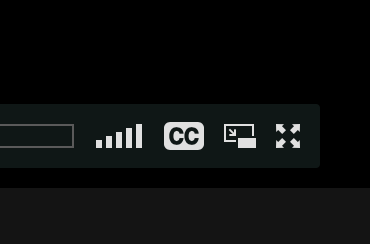
Computer / Desktop Browser
If subtitles are available, you can select the CC icon in the lower right corner of the player and choose a language
iOS & Android App
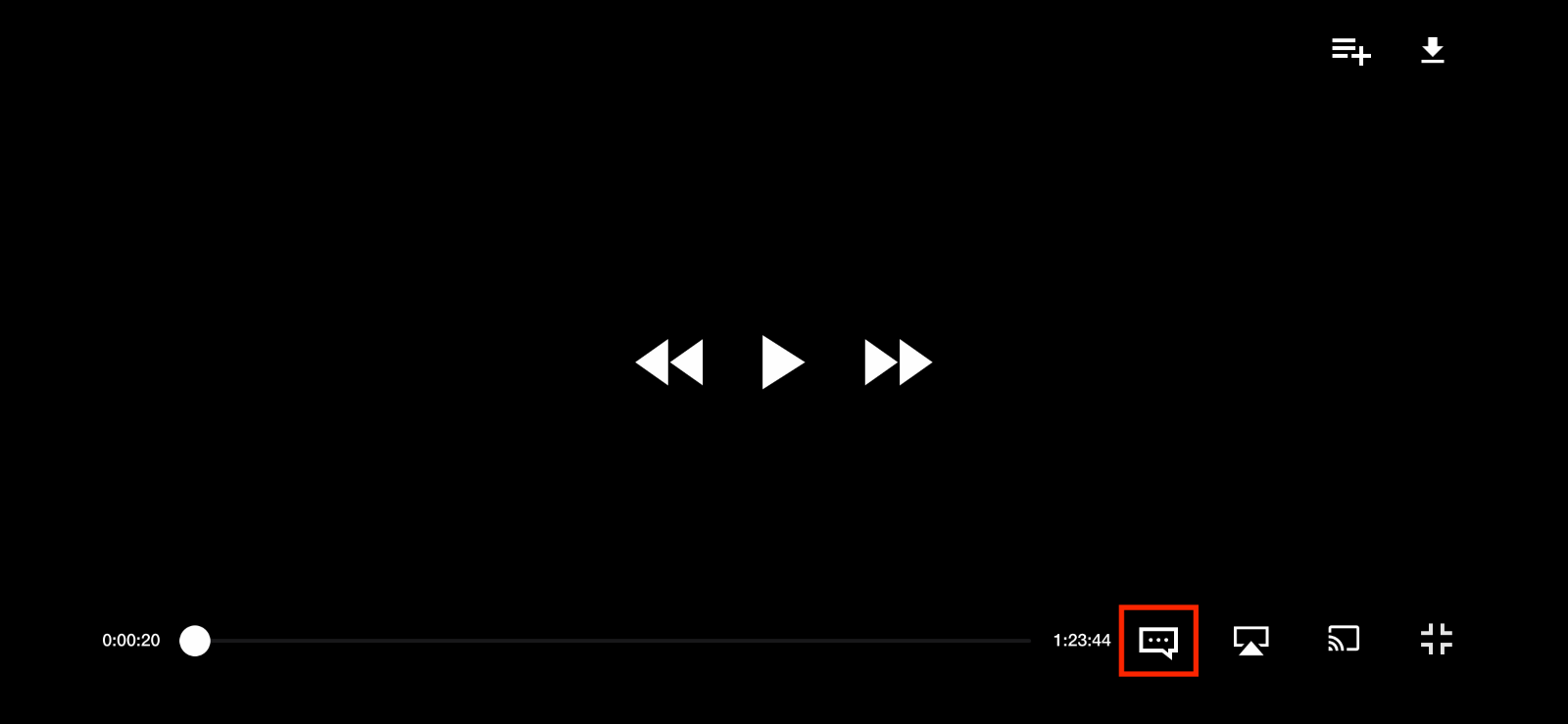
If subtitles are available, you can tap the subtitles icon on the bottom right corner of the player and select the language of choice:
tvOS
- Load the video.
- Swipe down on the touch surface on your remote.
- If available, the subtitle option will appear and a list of the subtitles available will appear below it.
- Select the subtitle option.
Roku
- Press the Home button on Roku remote.
- Scroll to the Settings option and select it.
- Scroll to the Accessibility option and select it.
- Select Captions Mode and select your preferred subtitle mode.
Amazon Fire Devices
- Select a video to watch and start playback.
- Press the Menu option.
- Select Turn Subtitles On.
- Press Menu again to go back to the video.
Download subtitles
If you’ve purchased a video that is available for download from the web, you may also be able to download the subtitles file.
1. Visit the video page via the Browse page.
2. Open the Subtitle Downloads dropdown menu.

3. Select which language you want to download and the SRT will begin downloading to your computer.
4. You can then use a video player to playback the subtitle file with the downloaded video file.
Two notes:
- Videos within a subscription or rental are not downloadable via the computer, only via mobile apps. When viewing via a browser, there is no option to download. Please note that most trailers will be available to download on leaders.formed.org.
- Not all videos available for purchase will be available to download. If you do not see a download video button via desktop, they are likely disabled.
When viewing via a desktop browser, the download options are available below the player on the video's page.
- When on the Browse or Product page, click into the video you want to download.
- Scroll down on the video page.
- Click the Video Downloads dropdown below the player.
- Select the video resolution you wish to download from the dropdown.
- It will save to your computer, and you can watch from there or transfer it to other external devices.
We are happy to assist and can be contacted by email at parishcare@formed.org or by phone at 866-767-3155.
You may purchase guides at Catholic.Market.
Please go to Catholic.market to place an order for any physical products!
We found that simply downloading a pdf and making copies was not as effective or fruitful of a compliment to Formed programs, as our printed guides. Our printed guides and journals have shown to be more engaging and rewarding, especially since many will use them as keepsakes or references after viewing the programs.